
Download and Install Service Mesh

Download Anypoint Service Mesh Client
You install, manage, and troubleshoot your Anypoint Service Mesh instance by using the Anypoint Service Mesh client.
To download the Anypoint Service Mesh client, type the following command at the command prompt:
curl -Ls http://anypoint.mulesoft.com/servicemesh/xapi/v1/install > asmctl && chmod +x asmctl
Configure Your Environment Variable on Unix-like Systems
Before you install Anypoint Service Mesh, configure your PATH environment variable to store system-wide values, such as the directories to search for the executable programs.
To configure your PATH variable on Linux:
-
Open the
.bashrcfile in your home directory.For example, type
nano ~/.bashrcto open the file with the nano text editor. -
Add the following command to the last line of the file:
export PATH=your-dir:$PATH, where your-dir is the directory you want to add. -
Save the
.bashrcfile. -
Restart your terminal.
Install Anypoint Service Mesh
When you invoke the installer, Service Catalog, Anypoint Service Mesh Broker, and ClusterIP Service components are installed in your Kubernetes Cluster. The installer performs several steps as part of the installation, such as checking for dependencies and performing various configurations.
You can install Anypoint Service Mesh using the following options:
Task Prerequisites
Before you install Anypoint Service Mesh, ensure that you have completed the installation prerequisites. You will require the credentials and license information acquired from the prerequisites to perform the installation.
Install without Proxy
To install Anypoint Service Mesh without a proxy, perform the following steps:
-
In the location from which you downloaded your Anypoint Service Mesh client, type:
asmctl install --clientId=<clientId> --clientSecret=<clientSecret> --license=<license absolute or relative path> --platformUri=<Anypoint Platform Uri>Anypoint Service Mesh installs within few minutes and displays a status:
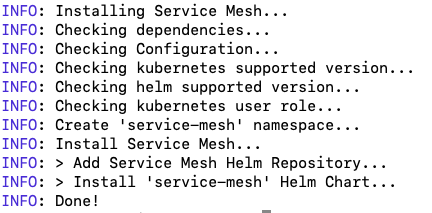
If an installation error occurs, the installer times out and uninstalls all previously installed Anypoint Service Mesh components.
-
Verify the status of all pods:
kubectl get pods -n service-meshAnypoint Service Mesh is installed and a status of all pods is displayed:

Install with Proxy
If you need to install Anypoint Service Mesh in a proxy environment, provide the proxy configuration during the installation.
-
In the location from which you downloaded your Anypoint Service Mesh client, type:
asmctl install --clientId=<clientId> --clientSecret=<clientSecret> --license=<license absolute or relative path> --platformUri=<Anypoint Platform Uri> --proxyHost=<host> --proxyProtocol=<protocol> --proxyPort=<port> --proxyUser=<proxy username> --proxyPassword=<proxy password>Parameter Name Description Required or Optional Default Value clientIdThe client ID of the environment (recommended) or the organization
Required
None
clientSecretThe client secret of the environment (recommended) or the organization
Required
None
licenseThe path to the location where your license is stored
Required
None
mtlsEnable Mutual TLS (mTLS) authentication in adapter connections: enabled or disabled
Optional
disabled
platformUriThe URL of the platform
Optional
proxyHostThe name of the proxy host
Optional
None
proxyProtocolThe protocol used by the proxy: HTTP or HTTPS
Optional
None
proxyPortThe port number used by the proxy
Optional
None
proxyUserThe username for the proxy authentication
Optional
None
proxyPasswordThe password for the proxy authentication
Optional
None
Anypoint Service Mesh installs within few minutes and displays a status:
If an installation error occurs, the installer times out and uninstalls all previously installed Anypoint Service Mesh components.
-
Verify the status of all pods:
kubectl get pods -n service-meshAnypoint Service Mesh is installed and the status of all pods is displayed: