CMIS Connector
Community
Introduction
The Anypoint Connector for Content Management Interoperability Services (CMIS) provides connectivity to CMIS repositories, such as Alfresco and SharePoint. It enables synchronizing data and automating business processes across applications and systems.
Release Notes: CMIS Connector Release Notes
Before You Begin
This document assumes you are familiar with Mule, Anypoint Connectors, and Anypoint Studio Essentials. To increase your familiarity with Studio, consider completing one or more Anypoint Studio Tutorials. Further, this page assumes that you have a basic understanding of Elements in a Mule Flow and Mule Global Elements.
This document describes implementation examples within the context of Anypoint Studio, Mule ESB’s graphical user interface, and, in parallel, includes configuration details for doing the same in the XML Editor.
Installing and Configuring
Installing
-
In Anypoint Studio, click the Exchange icon in the Studio taskbar.
-
Click Login in Anypoint Exchange.
-
Search for the connector and click Install.
-
Follow the prompts to install the connector.
When Studio has an update, a message displays in the lower right corner, which you can click to install the update.
Configuring the CMIS Connector
To use the CMIS connector in your Mule application, you must configure:
-
A global element for CMIS for use by all the CMIS connectors in your Mule application. For more information, see Mule Global Elements.
-
Parameters of each CMIS connector instance in the application.
Follow these steps to configure CMIS connector in a Mule application:
-
Click the Global Elements tab at the base of the canvas, then click Create.
-
In the Choose Global Type menu, use the filter to locate and select CMIS, then click OK.
-
Configure the parameters according to the table below.
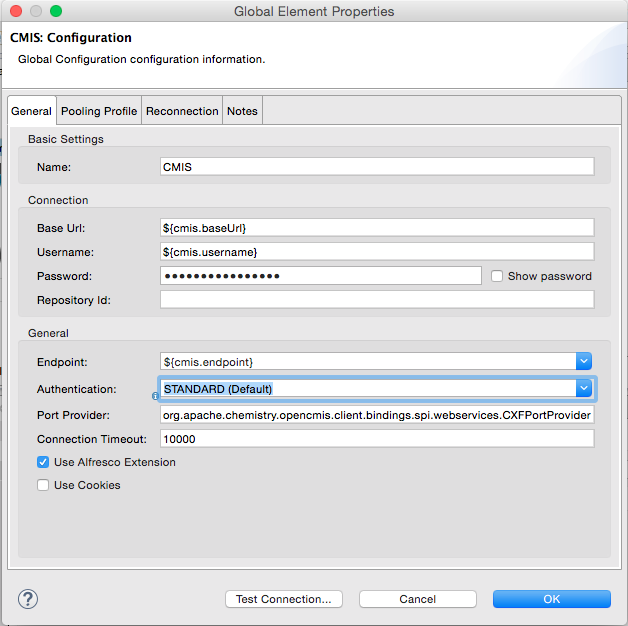
Parameter Description Default Value Name
Enter a name for the configuration so it can be referenced later by the
config-refparameter in the flow.Username
Enter the username for your content repository.
Password
Enter the password for the above CMIS username.
Base Url
Enter the URL of the CMIS sandbox instance
Repository Id
Enter the Repository Identity that this connector can access. If not provided, the connector will automatically set it to the first if multiple repositories are available
Endpoint
Enter the type of the endpoint: SOAP or ATOMPUB.
ATOM
Connection Timeout
Specify the values for the connection time out.
10000
Authentication
Specify authentication provider, supports HTTP basic authentication (STANDARD) and NTLM.
STANDARD
Use Alfresco Extension
Specify whether the Alfresco Object Factory implementation should be utilized. Leave this checkbox deselected for the application to use the default value.
False
Cxf Port Provider
Specify the name of the CXF port provider here. The CMIS connector includes a default implementation.
org.apache.chemistry.opencmis.client.bindings.spi.webservices.CXFPortProviderUse Cookies
Set this option to 'true' if you want to enable cookie support.
False
-
Access the Pooling Profile tab to configure any settings relevant to managing multiple connections using a connection pool.
-
Access the Reconnection tab to configure any settings relevant to reconnection strategies that Mule should execute if it loses its connection to CMIS.
-
Click OK to save the global connector configurations.
-
Return to the Message Flow tab in Studio.
Connector Operations
The Anypoint CMIS connector is an operation-based connector, which means that when you add the connector to your flow, you need to configure a specific operation the connector is intended to perform. The connector supports the following operations:
| Operation | Description |
|---|---|
Set the permissions associated with an object |
|
Apply and aspect to an object and set some properties of that aspect |
|
Apply policies to an object |
|
If applied to a private working copy of a document, the check out will be reversed |
|
Get repository changes |
|
If applied to a private working copy, it performs a check in |
|
Check out the document and return the object id of the private working copy |
|
Create a new document in the repository where the content comes directly from the payload and the target folder node is specified by an object ID |
|
Create a new document in the repository where the content comes directly from the payload and the target folder node is specified by an object ID |
|
Create a new document in the repository where the content comes directly from the payload and the target folder node is specified by a repository path |
|
Create a new document in the repository where the content is specified as the value of the "content" parameter and the target folder node is specified by a repository path. |
|
Create a folder |
|
Creates a parent/child relationship between two nodes in the repository of the specified relationship object type |
|
Remove an object |
|
Delete a folder and all sub-folders |
|
Navigates the folder structure |
|
Get the permissions associated with an object |
|
Retrieve an object’s version history |
|
Get the policies that are applied to an object |
|
Retrieve list of checked out documents |
|
Retrieves the content stream of a document |
|
Get a CMIS object from the repository and put it into the cache |
|
Get a CMIS object from the repository and puts it into the cache |
|
Get the relationships if they have been fetched for an object |
|
Create a new folder in the repository if it doesn’t already exist |
|
Get the parent folders of a Fileable CMIS object |
|
Get the type definition of the given type id. |
|
Move a Fileable CMIS object from one location to another. |
|
Send a query to the repository |
|
Get all repositories that are available at the endpoint |
|
Get information about the CMIS repository, the optional capabilities it supports, and its Access Control information, if applicable |
|
Update an object’s properties |
Configuring the Connector in a Flow
Follow these steps to configure the parameters of the CMIS connector in a flow:
-
Drag the CMIS connector onto the canvas, then select it to open the Properties Editor console.
-
Configure these connector parameters:
Field Description Default Display Name
Enter a unique label for the connector in your application.
CMIS
Connector Configuration
Select the global CMIS connector element that you just created.
—
Operation
Select the action this component must perform.
—
-
Save your configurations.
Example Use Case
Use the CMIS connector to access a CMIS repository and upload a file to it.
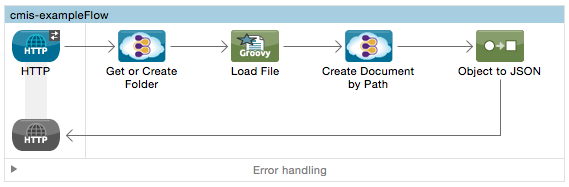
-
Drag an HTTP endpoint into a new flow, and add a new HTTP Listener Configuration as follows:
Field Value Display Name
HTTP
Host
localhost
Port
8081
Base Path
cmis
-
Drag the CMIS connector onto the canvas, then select it to open the properties editor console.
-
Click the + sign next to the Connector Configuration field to add a new global connector configuration:
-
Configure the CMIS global element with placeholders defined in mule-app.properties.
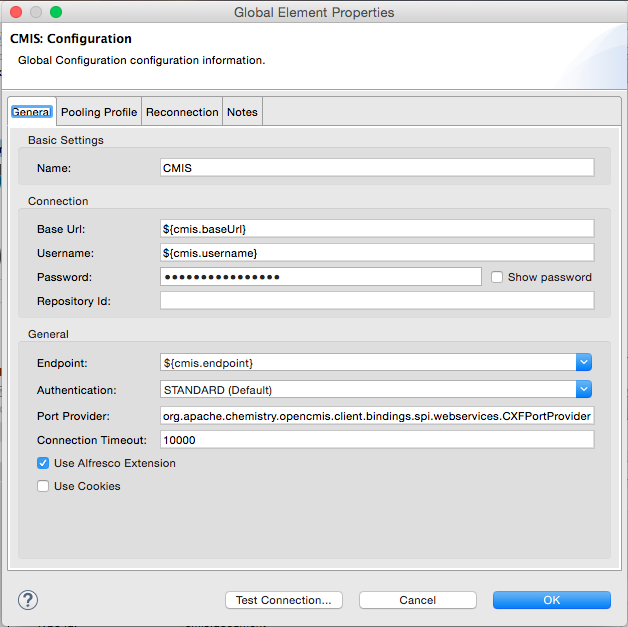
Field Value Default Value Name
CMIS (or any other name you prefer)
Base Url
Enter the URL of the SOAP connector.
Username
Enter the username for your content repository.
Password
Enter the password for the CMIS username.
Repository Id
Enter the ID of the repository that this connector should access.
Endpoint
Enter the type of the endpoint. You can leave this field blank for the application to use the default value.
ATOM
Connection Timeout
Specify the values for the connection time out. You can leave this field blank for the application to use the default value.
10000
Use Alfresco Extension
Specify whether the Alfresco Object Factory implementation should be utilized. Leave this checkbox deselected for the application to use the default value.
False
Cxf Port Provider
Specify the name of the CXF port provider here. The CMIS connector includes a default implementation.
org.apache.chemistry.opencmis.client.bindings.spi. webservices.CXFPortProviderUse Cookies
Leave the checkbox deselected to disable the cookie support in the application. Use Cookies field can be used to enable/disable cookie support, and also implement custom cookie settings.
False
-
In the properties editor of the CMIS connector, use the Get or create folder by path operation to create a folder in the CMIS repository:
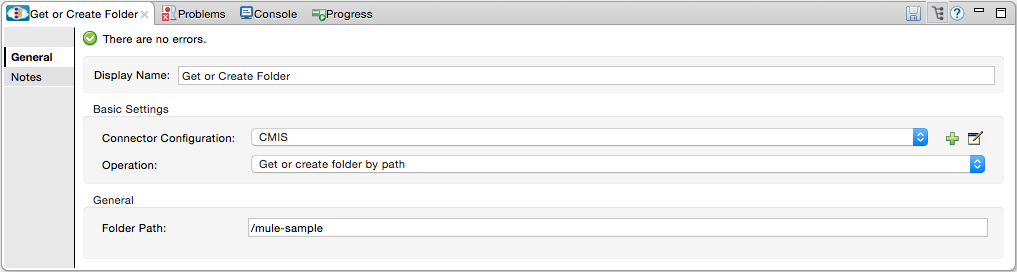
Field Value Display Name
Create Folder
Connector Configuration
CMIS
Operation
Get or create folder by path
Folder Path
/mule-sample (or any other path your prefer)
-
Add a Groovy component to the flow and add the following script text to process the message payload:
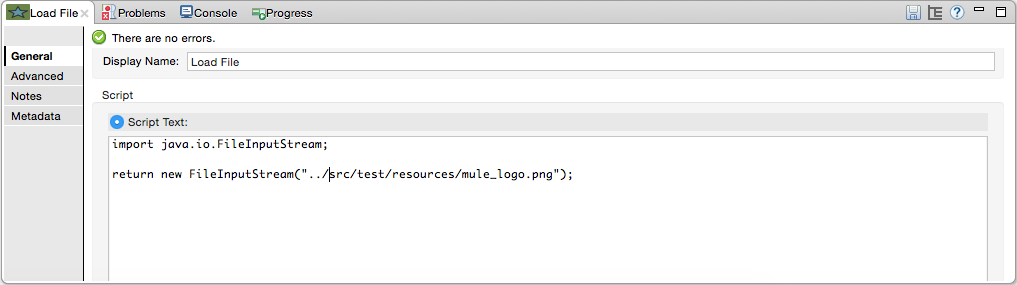
Field Value Display Name
Load File
Script Text
import java.io.FileInputStream;
return new FileInputStream("../src/test/resources/mule_logo.png");Note: The file path specified in the script text needs to be changed to point the image file on your local system. -
Add another CMIS connector after the Groovy component, and use the Create document by path operation to create a document with the content in the payload.
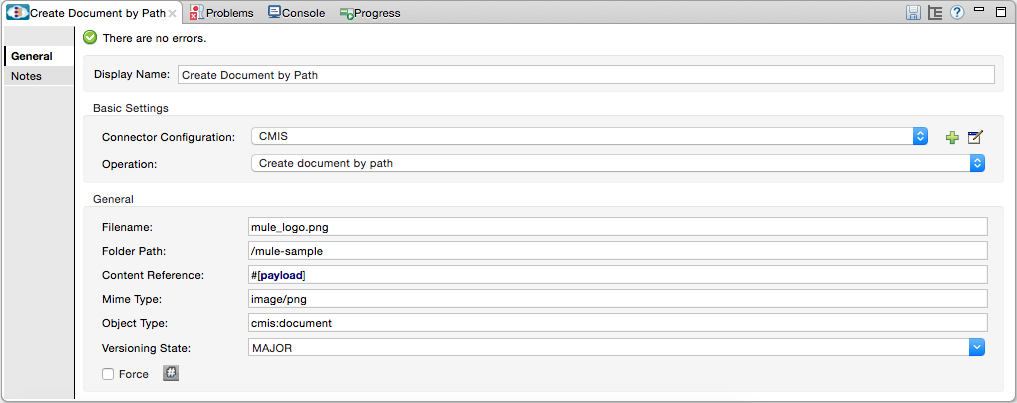
Field Value Display Name
Create document by path (or any other name you prefer).
Connector Configuration
<Select the global element you have created>
Operation
Create document by path
Filename
<Specify the name of the file you want to use>
Folder Path
<Specify the path to the above-created folder>
Content Reference
#[payload]
Mime Type
image/png (Specifies the stream content type)
Object Type
cmis:document
Versioning State
MAJOR (Specifies the versioning state of the newly created object. Major denotes that the document must be created as a major version)
Force
Deselected (If you check this box, the application will create any missing intermediate folders in the folder path. By default, the checkbox is deselected.)
Properties
none
-
Add a Object to Json transformer onto the flow to capture the response from the CMIS connector and display it as a HTTP response.
Field Value Display Name
Object to Json
This completes the use case.
Example Code
| For this code to work in Anypoint Studio, you must provide the credentials for the CMIS account. You can either replace the variables with their values in the code, or you can add details to the file named mule-app.properties in the folder src/main/properties to provide values for each variable. |
<?xml version="1.0" encoding="UTF-8"?>

<mule xmlns:scripting="http://www.mulesoft.org/schema/mule/scripting" xmlns:mulexml="http://www.mulesoft.org/schema/mule/xml" xmlns:json="http://www.mulesoft.org/schema/mule/json" xmlns:http="http://www.mulesoft.org/schema/mule/http" xmlns:cmis="http://www.mulesoft.org/schema/mule/cmis" xmlns="http://www.mulesoft.org/schema/mule/core" xmlns:doc="http://www.mulesoft.org/schema/mule/documentation"
	xmlns:spring="http://www.springframework.org/schema/beans"
	xmlns:xsi="http://www.w3.org/2001/XMLSchema-instance"
	xsi:schemaLocation="http://www.springframework.org/schema/beans http://www.springframework.org/schema/beans/spring-beans-current.xsd
http://www.mulesoft.org/schema/mule/core http://www.mulesoft.org/schema/mule/core/current/mule.xsd
http://www.mulesoft.org/schema/mule/cmis http://www.mulesoft.org/schema/mule/cmis/current/mule-cmis.xsd
http://www.mulesoft.org/schema/mule/json http://www.mulesoft.org/schema/mule/json/current/mule-json.xsd
http://www.mulesoft.org/schema/mule/http http://www.mulesoft.org/schema/mule/http/current/mule-http.xsd
http://www.mulesoft.org/schema/mule/xml http://www.mulesoft.org/schema/mule/xml/current/mule-xml.xsd
http://www.mulesoft.org/schema/mule/scripting http://www.mulesoft.org/schema/mule/scripting/current/mule-scripting.xsd">
    <http:listener-config name="HTTP_Listener_Configuration" host="0.0.0.0" port="8081" doc:name="HTTP Listener Configuration"/>
    <cmis:config name="CMIS" baseUrl="${cmis.baseUrl}" username="${cmis.username}" password="${cmis.password}" endpoint="${cmis.endpoint}" useAlfrescoExtension="true" doc:name="CMIS" />
    <flow name="cmis-exampleFlow">
        <http:listener config-ref="HTTP_Listener_Configuration" path="/cmis" doc:name="HTTP"/>
        <cmis:get-or-create-folder-by-path config-ref="CMIS" doc:name="Get or Create Folder" folderPath="/mule-sample">
        </cmis:get-or-create-folder-by-path>
        <scripting:component doc:name="Load File">
            <scripting:script engine="Groovy"><![CDATA[import java.io.FileInputStream;

return new FileInputStream("../src/test/resources/mule_logo.png");]]></scripting:script>
        </scripting:component>
        <cmis:create-document-by-path config-ref="CMIS" filename="mule_logo.png" folderPath="/mule-sample" mimeType="image/png" objectType="cmis:document" versioningState="MAJOR" doc:name="Create Document by Path"/>
        <json:object-to-json-transformer doc:name="Object to JSON"/>
    </flow>
</mule>
Test the Flow
Run the project as a Mule Application (right-click project name, then select Run As > Mule Application).
Navigate to http://localhost:8081/cmis to upload a file to your CMIS repository. Once successful, you should be able to view the folder along with the image in your repository.
In the browser you should see JSON text with the ID of the image, for example: {"id":"0ee92f24-2b77-4d83-b0ff-4c86946c81f2;1.0"}
See Also
-
Learn more about working with Anypoint Connectors
-
Learn about Mule Expression Language (MEL)
-
Learn about Configuring Endpoints
-
Learn about Mule Transformers
-
Access Public Alfresco CMIS Test Server documentation